Showing posts with label azure. Show all posts

Tuesday, March 18, 2025

Quick Tip: installing Azure Service Bus Explorer with Chocolatey

 Recently I had to reinstall Azure Service Bus Explorer on a new laptop and it seems that you now need to use Chocolatey (a package manager for Windows) to install Azure Service Bus Explorer. 

Installing Chocolatey, is quite straightforward, - you need to follow the steps outlined on Install Chocolatey for individual use - I installed Chocolatey using PowerShell prompt (with elevated privileges) and did not encounter any issues. 

Next you can simply install Azure Service Bus Explorer from command prompt using "choco install servicebusexplorer". By default it will install into this folder C:\ProgramData\chocolatey\lib\ServiceBusExplorer\tools\ServiceBusExplorer.exe . No issues encountered with version 6.0.3


Thursday, September 26, 2024

Quick tip: Get-AzSubscription and Azure Cloud Shell

The Get-AzSubscription PowerShell cmdlet gets the subscription ID, subscription name and home tenant for subscriptions that the current account can access. You can also pass this values in as a parameter e.g. "Get-AzSubscription -SubscriptionId" to find the name of a subscription. 

The easiest way to execute this cmdlet (without having to install anything on your machine) is by using Azure Cloud Shell.  A handy feature of Azure Cloud Shell is predictive intellisense - use the RightArrow key to accept an inline suggestion.


Sunday, May 19, 2024

Quick tip: cheap static website hosting in Azure Storage

Azure Storage's static website hosting feature provides a serverless solution for serving static content such as HTML and images, directly from the $web container. It's a cost-effective option since there's no charge for enabling the feature, with expenses arising only from storage use and operations. Additionally, it includes traffic metrics for easy monitoring of visitor statistics.


Thursday, February 22, 2024

Classic Azure Application Insights deprecated on February 29th 2024 - 7 days to go

 If you missed it - classic Azure Application Insights will be deprecated on February 29th 2024. If you missed the different notification e-mails, you can quite easily see the warning if you navigate to an Azure Application Insights resource in Azure Portal.


Migration is actually quite easy - you just click on the link provided and this will open up the menu depicted below which allows you to associate your Azure Application Insights resource to a Log Analytics Workspace. The good news is that there are no pricing changes when moving to the workspace-based model. 


As indicated in the migration window, this is  a one way operation so plan for it in advance - the points below might impact on how you will do the migration:

  • You can link different Application Insight resources to a single Log Analytics workspace or you can make the split - in most case you want to consolidate it.
  • Instrumentation keys do not change during the migration so you don't need to worry about this
  • The export feature is not available on the Application Insights workspace-based resources - you need to look at diagnostic settings for exporting telemetry
  • There might be some schema changes - important to consider when doing KQL queries - check out query data across Log Analytics workspaces, applications and resources in Azure Monitor
  • Existing log data will not immediately move to the Log Analytics workspace - only new logs generated after the migration will be stored in the new log location.


Tuesday, December 26, 2023

Running SSIS packages in Azure Data Factory - scaling and monitoring

Lifting and shifting SSIS packages to Azure Data Factory (ADF) can provide several benefits. By moving your on-premises SSIS workloads to Azure, you can reduce operational costs and the burden of managing infrastructure that you have when you run SSIS on-premises or on Azure virtual machines. 

You can also increase high availability with the ability to specify multiple nodes per cluster, as well as the high availability features of Azure and of Azure SQL Database. You can also increase scalability with the ability to specify multiple cores per node (scale up) and multiple nodes per cluster (scale out) - see Lift and shift SQL Server Integration Services workloads to the cloud

To lift and shift SSIS packages to ADF, you can use the SSIS Integration Runtime (IR) in ADF. The Azure SSIS-IR is a cluster of virtual machines for executing SSIS packages. You can define the number of cores and compute capacity during the initial configuration (Lift and shift SSIS packages using Azure Data Factory on SQLHack)

Even though there is Microsoft article which explains how to Configure the Azure-SSIS integration runtime for high performance, there is not a lot of guidance of how to run it at the lowest possible cost but still being able to complete the jobs. So would you recommend a higher sizing running on a single node or running a lower sizing on multiple nodes? Based on experience, it seems perfectly possible to run most jobs on a single node and up until now we have been running all of them on a D4_v3, 4 cores, 16GB Standard. If you decide to run it on a lower configuration, it would recommend monitoring failures, capacity usage and throughput. (See Monitor integration runtime in Azure Data Factory for more details)


Reference:


Wednesday, November 29, 2023

Dynamics 365 and Power Platform monthly reading list November 2023

 2023 Release Wave 2

Technical topics (Configuration, customization and extensibility)

Copilots, AI and machine learning

Topics for Dynamics 365 Business Applications Platform consultants, project managers and power users


Wednesday, March 22, 2023

Upgrade to Azure Functions runtime v 4.x

Even though  the Azure Functions runtime 2.0 and 3.0 were retired on December 13th, 2022 , I recently still found some Azure Functions using these older runtimes.  See Azure Functions runtime versions overview which outlines the support for the different version.


Azure Functions that use runtime version 2.x or 3.x will continue to run but Microsoft is no longer providing updates or support for applications that use these versions. There a number of reasons why you should upgrade:

What is the Azure Functions runtime?

For those not so familiar with Azure Functions, the Azure Functions runtime is the engine that powers Azure Functions to execute user-defined code (written in . It is responsible for loading the user's code, executing it in response to specific triggers, and scaling the execution as needed to handle the workload. The runtime is a key component of the Azure Functions service, and it allows developers to focus on writing and deploying their code, rather than worrying about the underlying infrastructure.

How to find the Azure Functions runtime version?

When you log in to the Azure Portal and go to the Function runtime settings tab on the configuration page of an Azure function, you will see which runtime version is in use. Instead of having to look at every individual function, you might also take a look at the Azure Resource Graph


Thursday, March 09, 2023

Dynamics 365 and Power Platform monthly reading list March 2023

 Power Platform and Dynamics 365 release 2023 wave 1

Technical topics (Configuration, customization and extensibility)


Topics for Dynamics 365 Business Applications Platform consultants, project managers and power users


Monday, January 02, 2023

Notes on deploying and troubleshooting a Streamlit app on Azure App Services

 A couple of weeks ago I was playing around with Streamlit and decided to deploy it on Azure a
using Azure App Services using the guidance from Deploying Streamlit Applications with Azure App Services . 

Streamlit is an open-source Python library that allows you to create interactive, data-driven web applications in just a few lines of Python code. It does not require you to have any JavaScript, html or CSS experience.  


The deployment using the steps outlined in the blog post went quite smooth but when I navigated to the website, I was greeted by an exception.

Since I haven't worked with Linux for over 20 years now, I feared to be in for a long and painful experience to get this resolved but it actually turned out to be easier then expected. 

First step, I took was looking at the Application Logs for the Azure Web App. Go to the Azure App Service > Diagnose and solve problems > Application Logs. 

When scrolling through the Application Logs

The exception log "TypeError: Descriptor cannot be created directly. Your  generated code is 
out of data and must be regenerated with protoc > 3.19.0. If you cannot immediately
regenerate your protos, some other possible workarounds are: 1. Downgrade the protobuf package to 3.20.x or lower" actually pointed me to a thread on the Streamlit forums - Issue with Protocol Buffers. After changing requirements.txt  to deploy a newer version of Streamlit (see Configure a Linux Python App for Azure App Service for more details on how the Azure App Service deployment engine automatically runs pip install.) all started working correctly again.

Wednesday, November 16, 2022

Visualize S&P 500 data in Power BI using Azure Synapse Serverless SQL Pool

In Explore and analyze stock ticker data in Azure data lake with Azure Synapse serverless SQL Pool, I showed you can download stock ticker data from Yahoo Finance, stored it in Azure Data Lake and retrieve the data using standard T-SQL in Azure Synapse Studio. In this post, I will show how easy it is to consume the data from Synapse SQL Serverless using Power BI.


For the standard visual with the evolution of the S&P 500 closing price, I connected directly on SP500 external table in the Synapse SQL. You can connect to Synapse SQL Serverless using either the Azure SQL Database or Azure Synapse Analytics SQL connector and you will need to enter the Serverless SQL endpoint which looks something like this <yoursynapse>-ondemand.sql.azuresynapse.net


With the second reported I want to visualize the S&P 500 yearly return and the average return since December 1927. To make it easier, I created a separate view on top of the external table which calculates the yearly returns


As you see from the visual, returns can vary quite a lot both on the negative side as well as on the positive side - for the last 20 years, there was a huge drop in 2008 (-38%) and also this year is not looking great (-22%), but 2013, 2019 and 2021 all had returns above 20%. On average across the S&P 500 returned 7% (not included dividends).


For the last visual in the Power BI report, I wanted to show a histogram with the S&P 500 yearly returns. I based myself on Power BI Histogram example using DAX since  Power BI does not have a standard histogram and I did not want to use a custom visual ( I used Power BI custom visuals from Pragmatic Works in the past)

Equity returns roughly follow a normal distribution or "bell curve", meaning that most values cluster near the central peak and values farther from the average are less common.  Stock returns however have fat tails - meaning that the occurrences on the extremes are far more common than expected in a normal distribution.  The Greate Depression (1931) and the Global Financial Crisis (2008) led to two of the largest stock market losses of the S&P 500. With a loss between -20% and -30% this year, we are in the same category/bin as 1930, 1974 and 2002.


Monday, November 14, 2022

Azure functions with Python: a getting started guide

In this post, we'll learn what Azure Functions are, and how you can use VS Code to write your first Azure Function in Python code. 

I will show how you can create a simple Azure Function which retrieves data from Yahoo Finance (See Using Python and Pandas Datareader to retrieve financial data - part 3: Yahoo Finance) and saves the retrieved data in a CSV file in Azure blob storage. I will be using the Python v1 programming model for Azure Functions since v2 is still in preview.

Introduction to Serverless and Azure Functions

More traditional forms of cloud usage require you to provision virtual machines in the cloud, deploy your code to these VMs, manage resource usage and scaling, keep the OS up to date and the underlying stack, setup monitoring, perform backups, etc... 

But if you just want to deploy some piece of code which needs to handle some kind of event, serverless compute might be the right choice for you. With serverless compute, you can develop your applications, deploy it to the serverless service like Azure Functions and you don't need to worry about the underlying hosting architecture. Serverless compute is most of the time cheaper than PAAS or IAAS hosting models. 


Several versions of the Azure Functions runtime are available - see Languages by runtime version for an overview which languages are supported in each runtime version. Python 3.7, 3.8 and 3.9 are supported by Azure Functions v2, v3 and v4. 

How to create an Azure Function using Azure Portal

You can deploy an Azure Function from your local machine to Azure without leaving VS Code, but I would recommend doing it first using the Azure Portal to understand what VS Code is doing behind the scenes. 

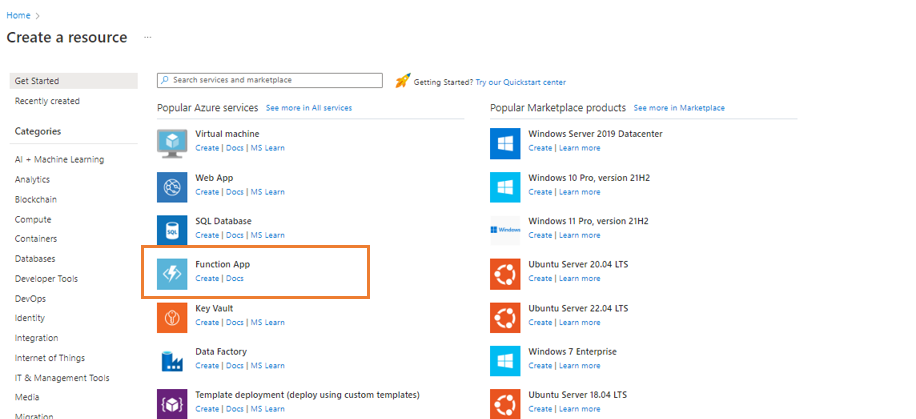
To create your Azure Function, click the Create a resource link on the Azure Portal home page and next select Function App.


This brings us to the function creation screen, where we have to provide some configuration details before our function is created:

  • Subscription: Azure subscription in which you want to deploy your Azure Function App
  • Resource group: container that holds related resources for an Azure solution - these resources typically share the same development lifecycle, permissions and policies, ...
  • Function App Name
  • Runtime stack: Python
  • Version: choose 3.9 (latest supported version) unless you have specific Python version dependencies.
  • Region: choose the same region as other resource that you need to deploy e.g., blob storage, Cosmos DB, etc. ...
  • Operating system: only Linux is supported
  • Plan type: leave it to Consumption (Serverless) unless you have very specific requirements with regards to execution time limit higher than 10 minutes (see Azure functions scale and hosting - function app timeout duration for more details)
In the next configuration screens just leave the default options but do make sure that you link up an Application Insights resource to your Azure function.

Setup your development environment

Things to setup beforehand:

Create your local Azure Function project in VS Code

Let's now see how you can create a local Azure Functions project in Python - open the Command Palette and choose Azure Functions: Create function. Next select Python, the Python interpreter to create a virtual environment, the template for the function (HTTP trigger) and the authorization level. Based on the provided information, Visual Studio Code will generate the different files in your project.

When you choose "HTTP trigger", it means that the function will activate when the function app receives a HTTP call. The name that you specified for the Function name (jopxtickerdata) will be used to create a new directory which contains three files:
  • function.json - configuration file for our function
  • sample.dat - sample data to test the function
  • __init__.py  - main file with the code that our function runs
You can also add in your own Python code files (e.g. jopxlib.py) that you can use afterwards __init__.py , see Azure Functions Python developer guide - Import behavior for more details.
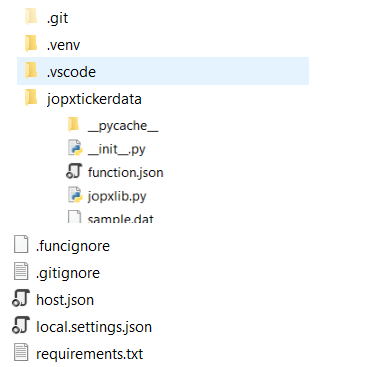
In the root directory of your project you will also see other files and folders:
  • local.settings.json: stores app settings and connection strings when running locally
  • requirements.txt: list of Python packages the system installs when publishing to Azure
  • host.json: configuration options that affect all functions in a function app instance
  • .venv:   folder which contains the Python virtual environment used by local development.
I slightly modified the standard generated HTTP trigger so that it accepts 2 query string parameters (name and startdate), added a reference to my own Python code (jopxlib) and called the writetickertoazblob function within the main function.


The code of  writetickertoazblob is quite simple - it will download data from Yahoo Finance in a dataframe and then save the dataframe to CSV and upload it to Azure Blob Storage. in Azure functons, application settings are exposed as environment variables during execution os.environ["AZURE_STORAGE_CONNECTION_STRING"] will read the application setting with name AZURE_STORAGE_CONNECTION_STRING


Sunday, September 18, 2022

Speaking engagements in coming months

With all Covid bans lifted and summer holidays well over, the conference season kicks off. 


I will be speaking at a couple of events in the coming weeks and months:

  • Dataminds evening session Upcoming in-person event on September 29th organized by dataMinds.be at Inetum-Realdolmen offices in Kontich together with Benni De Jagere. First session a little bit off the beaten track for data professionals: #dataviz for investors. Second session: #PowerBI roadmap and #AMA by Benni.
  • Collabdays Belgium 2022. Free community-driven event in Brussels, Belgium. Focus is Microsoft 365 with some Power Platform and Azure sprinkled on top. I am particularly excited to be speaking at this conference which was born out of the SharePoint Saturday conferences which I helped organize many years ago. I will be delivering Dataverse Deep Dive: watch out for sharks.
  • Cloudbrew 2022. A two-day conference focusing on all things Azure on November 18-19 in Mechelen Belgium. I will be delivering Using Python and Azure Cloud for trading and investing

Tuesday, August 02, 2022

Explore and analyze stock ticker data in Azure data lake with Azure Synapse serverless SQL Pool

In this walkthrough, I will show how you can perform exploratory data analysis on stock market data using Azure Synapse serverless SQL pools. To simplify things I will just focus on daily quotes for the S&P 500. 

The S&P 500 (short for Standard & Poor's 500) tracks the performance of 500 large companies listed on exchanges in the United States. The  composition of the S&P 500 is typically rebalanced four times per year. The S&P 500 is a capitalization-weighted index meaning that the stocks with a higher market capitalization have a big impact on the changes in the index (See Top 10 S&P 500 stocks by index weight)


I downloaded all daily data for the S&P 500 stock market index (ticker symbol is ^GSPC) from Yahoo Finance using the historical data tab in CSV format. The S&P CSV file contains the date, open, high, low, close, volume, dividends and stock splits for the S&P 500 from December 1927 (but the index in its current form was only created in 1957) until now (dividends and stock splits are not relevant).  I manually downloaded the file but take a look at  Using Python and Pandas Datareader to retrieve financial data part 3: Yahoo Finance and Using the yFinance Python package to download financial data from Yahoo Finance for ways to automate retrieving data from Yahoo Finance using Python.

Serverless SQL Pools in Azure Synapse

Serverless SQL Pool is an auto-scale SQL query engine that is built-in to Azure Synapse - as the term serverless indicates you don't need to worry about provisioning underlying hardware or software resources.  Serverless SQL Pool uses a pay-per-use model so you will only be charged for a query if you run it to process data.  Like Synapse dedicated SQL pool, serverless SQL pool also distributes processing across multiple nodes using a scale-out architecture (Check out the Microsoft research publication Polaris: the distributed SQL engine in Azure Synapse for an in-depth discussion). 

Synapse Serverless SQL enables you to query external data stored in Azure Storage (including Data Lake Gen 1 and Data Lake Gen2), Cosmos DB and Dataverse. The data remains stored in Azure storage in a supported file format (CSV, JSON, Parquet or delta) and is query processing is handled by the Synapse SQL engine.

Walkthrough: analyzing S&P 500 data with Synapse serverless SQL

In this post I will not show you how you need to setup Azure Synapse - take a look at Quickstart: Create a Synapse Workspace for a detailed walkthrough - the Microsoft Learn learning paths which I added in the references are also quite useful. 

In this post, I will be primarily using SQL to analyze the data but this is a matter of preference (having a coding background I prefer Python to do exploratory data analysis)

After you downloaded the data you will need to upload the CSV file to the Azure data lake storage associated with Synapse Link (you can also use a different Azure storage).


The OpenRowset (Bulk..) function allows you to access files in Azure storage.  The SP500.csv file has a header row specifying the different columns in use - it contains all daily ticker data since December 1927. I am using Parser_Version 2.0 since it is more performant but it has some limitations (see the Arguments section in Microsoft's OpenRowSet  documentation) - also check out How do Synapse serverless SQL pools deal with different file schemas (or schema evolution) part 1  CSV for some interesting info on how schema changes are handled.


If you will be using the data quite frequently, it might make more sense to use a CETAS process (CREATE EXTERNAL TABLE AS SELECT) to generate a dataset pointing to the data residing in the data lake ready for querying. In the Synapse Studio data hub, you can simply right click on a file and select the option to create an external table. 

Next, select the database and the name of the table. You will need to create the external table by selecting "Use SQL Script" since you will need to adapt the script to skip the header row for reading data. For CSV files you have the option to infer column names.
You will need to modify the generated script for creating the external file format so that it skips the header row. You are still able to modify the database in which you want to create the external table (1) and I added a line to indicate that the external file contains a header row so data read should start on row 2 (2). Once you understand the script, it also possible to modify it to use wildcards, so that you can read from multiple files in multiple folders.

Now let's try out some queries in Azure Synapse Studio:
  • Let's get all closing prices for this century ([date]> '2020-01-01') - you will notice that you can also visualize the data using some basic graphs.
  • Which were the years with the largest percentage difference between the highest and lowest close for the S&P 500? No surprises here - we have the Wall Street crash of 1929 followed by the Great Depression of the 1930s,  the Financial Crisis of 2007-2008 and the Covid crash in 2020 in the top 10 
  • Which were the days with the highest difference between the day's closing price and the previous closing price - so the days in which the market crashed. In this example I used the SQL Lag() function.  Besides the 1930s we also see Black Monday with a 20% decline in the S&P 500 - this triggered a global sell-off (Take a look at this video about Black Monday documentary (YouTube) with traders actually still working on the market floor)
  • You can also use common table expressions (CTE) for working with temporary named result sets for more complex queries and data manipulations. In the example below I want to find the 3-day trend for the S&P 500. (See Introduction to the SQL With clause if you are new to CTEs).  The idea behind this query is to create a three-day trend variable for any given row. If the closing price on a day is greater than the closing price on the previous day, then we assign that day +1 one, otherwise, that date gets assigned -1 (minx_close columns). If the majority in the previous 3 days consists of positive values, the trend is positive, otherwise the trend is negative. (Example taken from Coursera: Introduction to Trading, Machine Learning & GCP )
As seen in this post, Synapse serverless SQL is quite useful for data professionals in different situations. Data engineers can use it to explore data from data lake to optimize data transformations, data scientists and data analysts can use it to quickly carry out exploratory data analysis (EDA). Take a look at Build data analytics solutions using Azure Synapse serverless SQL pools (Microsoft Learn) if you want to learn more.  In an upcoming post I will show how easy it is to consume the data from Azure Synapse SQL Serverless in Power BI.

Monday, July 25, 2022

Quick tip: finding the Azure data center for your Dynamics 365/CRM online environment

Dynamics 365 (CRM) is being hosted in a number of different Azure datacenters - on Administer Power Platform  - Data center regions you will see an overview of the different regions. If your region is EUR (so url is crm4.dynamics.com), then the linked Azure datacenters can be in Amsterdam (West Europe) or Dublin (North Europe). There is a interesting visualization available on Azure Global Infrastructure


If you need to know whether a CRM instance is hosted in Amsterdam or Dublin (for example when you are setting up Azure Synapse Link for Dataverse), you can simply ping the url of your CRM instance (it will time-out but that is no problem) - if the response url starts with ams it is hosted in Amsterdam, if it is hosted in Dublin, the response will start with dub.


If you want to change the primary datacenter from North Europe (Dublin) to West Europe (Amsterdam)  or vice versa, you can open a Microsoft support ticket. This seems to be a quite common operation and the support request is usually treated quite quickly.


Friday, July 22, 2022

Quick tip: download links for icons of Azure, Power Platform and Dynamics 365 products

If you are looking for the official collection of icons for Power Platform, Azure or Dynamics 365 that you can use in architectural diagrams or diagrams - here they are:

Monday, June 20, 2022

Analyze model-driven apps and Microsoft Dataverse telemetry with Application Insights

Beginning of May 2022, Microsoft announced that the ability to configure an Azure Application Insights resource to receive telemetry on diagnostics and performance of Dynamics 365/Dataverse model driven apps was generally available. 

Integration of Dynamics 365/Dataverse with Application Insights enables new monitoring strategies for Dynamics 365/Dataverse. Application Insights will allow you to detect and resolve issues before the end user notices it.  I also think this is very useful for following up on performance impact during big data loads/migrations (see screenshot below where Dataverse processed 6.1 million requests). Application Insights integration is a nice addition to the already extensive toolkit as outlined in the Monitoring the Power Platform blog series by @pfedynamics


The logs in Application Insights allow you to build queries to troubleshoot and monitor your solutions and answer questions like:

If you want to learn more and see some examples - definitely take a look at the blog post from @decastroallan on Analyzing your Dataverse environment using Application Insights 

The performance insights (preview) for model-driven apps is probably leveraging the same telemetry but since you now have access to the raw data in the underlying logs it will be easier to pin point potential issues or discover ways to improve the performance and/or user experience. 

KQL (Kusto Query Language) can be used to query the logs in Application Insights in a scalable fashion  - KQL can be used to also query other Azure components like Azure Log Analytics, Microsoft Defender and Azure Data Explorer. KQL is a SQL-like query language which is powered by the Kusto Engine that allows you to query, filter, sort and aggregate data. It was built specifically built for the cloud and scales quite well. Unlike SQL, KQL can not create, update or delete data - it is purely meant to be used for query operations.

References:


Friday, April 08, 2022

Reading and writing files in Azure Blob Storage with Python

Azure Blob storage is Microsoft's object storage solution for the cloud and allows you to store massive amounts of unstructured data, such as text or binary data at low cost for every scale. If you are not familiar with it, I can recommend taking a look at the Store data in Azure learning path on Microsoft Learn

Using Python in combination with Azure Blob Storage is quite easy using the azure-storage-blob client library for Python . You can set up a container with private access meaning that you will need to provide credentials to access the containers and the blobs contained within. The easiest way to do this is using a shared access signature (SAS) token. You can generate a SAS token from the Azure Portal.


To interact with the different parts of Azure  Blob Storage you will typically use the BlobServiceClient to work with the Azure storage account itself, the ContainerClient to work with a specific container and the BlobClient to work with a specific blob.  Below is the sample code which uses these different clients in a Jupyter notebook (based on Quickstart: Manage blobs with Python v12 SDK)   - you can find the full Jupyter notebook at tradingnotebooks/AzureBlobStorage.ipynb at master · jorisp/tradingnotebooks (github.com) 


 References:

Wednesday, March 23, 2022

Recreating an Azure Synapse Link for Dataverse connection

If you encounter an exception during the initial setup of Azure Synapse Link for Dataverse, it is best that you check in Azure Synapse workspace whether the lake database was only partially created. When you want to retry the configuration, you will first need to remove the lake database. 

Previously you had to manually write a script but Microsoft has now added a handy delete button which will generate an Azure Synapse Analytics notebook for you. To be able to run the script you will however need to setup a serverless Apache Spark pool


The smallest default configuration (4vCores/32GB) is sufficient to run this notebook - double check the pause settings of the Spark pool after the initial setup or just delete the pool if you don't to expect to need it anymore afterwards to save costs. 


Other blog posts on Azure Synapse and Dataverse: