Tuesday, October 31, 2006

Required components for SharePoint 2007 Beta2 TR workflow development

If you are already doing workflow development with Microsoft Office SharePoint Server 2007 and Visual Studio 2005 - you should definitely download the latest update of the ECM Starter Kit Beta2 TR version from the ECM blog - Excerpt:

The ECM Starter Kit updated for B2TR is in the process of being published to MSDN. But in the meantime, just thought I'd post an "unofficial" version.

The samples are pretty much the same as in the Beta 2 kit, but there are a few additions:

Whitepaper: How to Add Activities to SharePoint Designer
Records Management Sample: Sample Barcode Generator
ECM Workflow Activity: FindManager activity

Also, the workflow templates come with some WSP solution package files to help with bundling workflows for deployment on production servers.


Also make sure that you first install the corresponding Microsoft Visual Studio 2005 extensions for Windows Workflow Foundation Release Candidate 5

tags: , , , , , , ,

Microsoft Search Results Clustering (SRC) tools

I recently found this search page using the SRC Beta (Search Result Clustering). SRC is a technology which has been developed by Microsoft's Web Search and Mining (WSM) group. I'm wondering when this technology will debute on the SharePoint Server 2007 platform.

tags: , ,

Monday, October 30, 2006

MOSS 2007 - Conditionally start a workflow with an eventhandler in SharePoint 2007

One of the major improvements in both WSS 3.0 and Microsoft Office SharePoint Server 2007 is the enhanced event handler framework. In SPS 2003 only document libraries supported event handlers, in WSS 3.0 and MOSS2007 there are also event handlers at site level and for all types of lists (both document libraries and lists). Another change is the support for both synchronous and assynchronous events - this means that an event also fires before an action occurs. There is for example an ItemAdded event as well as an ItemAdding event - the "Ed" event occurs after committing to the database and "Ing" event before committing changes to the database.

The base class for all eventhandling in SharePoint 2007 is the SPEventReceiverBase (Microsoft.SharePoint) class. The different classes you will need to inherit from to eventhandler are SPListEvenReceiver - for a list , SPWebEventReceiver - for site or site collection (deleted, deleting, moved, moving) and SPItemEventReceiver for individual items. In the next sample, I will create an event handler for a listitem which will start up a new workflow. To do this you will need to complete the next steps:

  • Create a new class library project in Visual Studio 2005
  • Add a reference to the Microsoft.SharePoint.dll to get access to the SPItemEventReceiver class
  • Add a custom class inheriting from the SPItemEventReceiver class
  • To get the event handler to work you will need to override some methods - in this case the ItemAdded and ItemUpdated methods
public override void ItemAdded(SPItemEventProperties properties)
{
ConditionalStartWorkflow(properties);
}

public override void ItemUpdated(SPItemEventProperties properties)
{
ConditionalStartWorkflow(properties);
}


private void ConditionalStartWorkflow(SPItemEventProperties properties)
{
try
{
SPListItem item = properties.ListItem;
string sDraft = item["Draft"].ToString();
bool bDraft = bool.Parse(item["Draft"].ToString());

//Start workflow only when it is not a draft version
if (!bDraft)
{
//Only start workflow - when there is no workflow active yet
if (item.Workflows.Count == 0)
{
SPWorkflowManager wfmgr = item.Web.Site.WorkflowManager;
SPWorkflowAssociationCollection wfassoccol = _
item.ParentList.WorkflowAssociations;

foreach (SPWorkflowAssociation wfassoc in wfassoccol)
{
//Find the GUID for the workflow association
if (String.Compare(wfassoc.BaseId.ToString("B"), _
"{c6964bff-bf8d-41ac-ad5e-b61ec111731c}", true) == 0)
{
wfmgr.StartWorkflow(item, wfassoc, "", true);
}
}
}

}
}
catch (Exception ex)
{
System.Diagnostics.EventLog.WriteEntry("StartHandler", ex.ToString());
}
}


  • Add a strong key to the library and build it. Then copy the dll you built to the Global Assembly Cache (GAC).

In SharePoint 2003 you could use the user interface to register an event handler, this is not possible anymore. There are however two other options:


  • Use the WSS features framework - this framework provides you with a way to package, deploy and activate your own customisations on top of SharePoint.
  • Do it through code (No UI as in WSS 2.0)

tags: , , , , , ,

Monday, October 23, 2006

SOA is all about Business Agility

It has been quite a while since I blogged something about SOA - ( SOA - more then just hype(5/2005) , SOA - Part 2 (11/2004) , Service Oriented Architecture (SOA) and other stuff ... (11/2004) and SOA revisited(12/2004)) but I recently read this great posting from Udi Dahan about SOA costs, savings & value.

The reason company's should move to SOA has to do with value. The looser coupling found in, and between, systems will decrease the time it takes to change and augment them. This translates to "business agility" (how I hate these hype-laden words). By decreasing overall complexity, the lifespan of systems will increase. In other words, you will be rewriting systems less, thus getting a higher return on investment on the systems that you've already built.

Another interesting read is this one - BPM, BPEL & SOA - A comedy of errors - it's key message : 

BPM, BPEL and SOA are frequently mistaken for each other. Having “process” in two of the three acronyms certainly doesn’t help matters. But at a more fundamental level people confuse the business centric perspective, which BPM is supposed to bring to the enterprise, with the IT centric perspectives which SOA and BPEL embody.

As well as  SOA transformation and IT culture shock

SOA is a loosely coupled model with higher level abstractions – at a business-service level versus a class level. SOA is actually more like component-based development (CBD). The CBD and SOA similarities include reuse through assembling components, interface definitions and loose coupling.

And last but not least - this article about SOA antipatterns - with the most recognizable antipattern #1 - "The same old, same old" Phenomenon.

I come across this antipattern often during my course of interviewing architects for various organizations. These architects claim to be well versed in SOA on the basis that SOA is the "same old" technology that they have been using for years, simply wrapped up in a newer and fancier package. Upon being challenged, they start flailing within a few minutes. That's because, while many of the good architecture principles (such as high cohesion and low coupling) still apply to an SOA, there are quite a few differences between SOA and its Object-oriented (OO) and Component-based architecture precursors. Probably the biggest difference is in 'what' you are modeling in each style. In the OO and component world, you are modeling the physical world in terms of things (i.e. nouns) while in an SOA you are modeling the same physical world in terms of processes (i.e. verbs).

tags: , ,

Sunday, October 22, 2006

InfoPath Attachment control and the InfoPathViewer WebPart

A while ago I wrote a posting about how you can use a webpart to render an InfoPath form when using Forms Server in SharePoint Server 2007. I however noticed that when you add an attachment control to this form - it does not seem to work. When I took a closer look at the MSDN article - Hosting the InfoPath 2007 Form Editing Environment in a Custom Web Form - I noticed the next paragraph:


Note The encoding type (enctype) attribute is necessary only if you intend to use the File Attachment control in a form loaded into the XmlFormView control. If this attribute is not set properly, the File Attachment control will appear to function but will not upload a file to the server running InfoPath Forms Services.

So you will need to add the next line to the CreateChildControls method:


this.Page.ClientScript.RegisterClientScriptBlock(this.GetType(), _
"Upload", "<script language='javascript'><!-- javascript:document.forms[0].encoding='multipart/form-data'; --></script>");
 
tags: , , , , , , 

Saturday, October 07, 2006

WCM with MOSS 2007 - The inner workings of web content management in SharePoint 2007 (Part III)

This is the third installment in a series of postings about Web Content Management with SharePoint 2007 - if you want to take a look at the previous ones:


One of the most important changes in Microsoft’s WCM platform is the fact that it is completely built on top of the SharePoint 2007 platform. This has two very important implications:

  • You can easily extend the WCM platform by taking advantage of all the features in ASP.Net 2.0 since this also the core of WSS 3/0
  • You will be able to take advantage of all out the box features present in the SharePoint 2007 platform

The key idea behind WCM is the separation from presentation and content in web publishing – in Microsoft Office SharePoint Server 2007 this is accomplished through the use of master pages, content types, page layouts and page libraries. Each of these components has a different task:

  • ASP.Net 2.0 Master pages are used to define the common elements in a page
  • Content types define the different types of information which can be shown on a page – the “what can be shown on a html page”
  • Page layouts are special ASP.Net pages which define the rendering for the content shown on a page – the “how is a page shown to the user”. Page layouts are the layer on top of the content type and provide a structured way for contributor to enter their web content.
  • The page libraries are a special kind of document library where all the content is stored


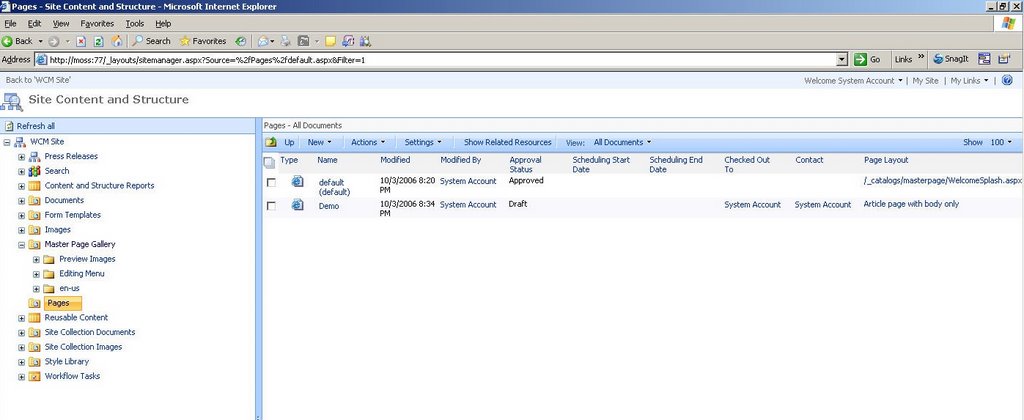
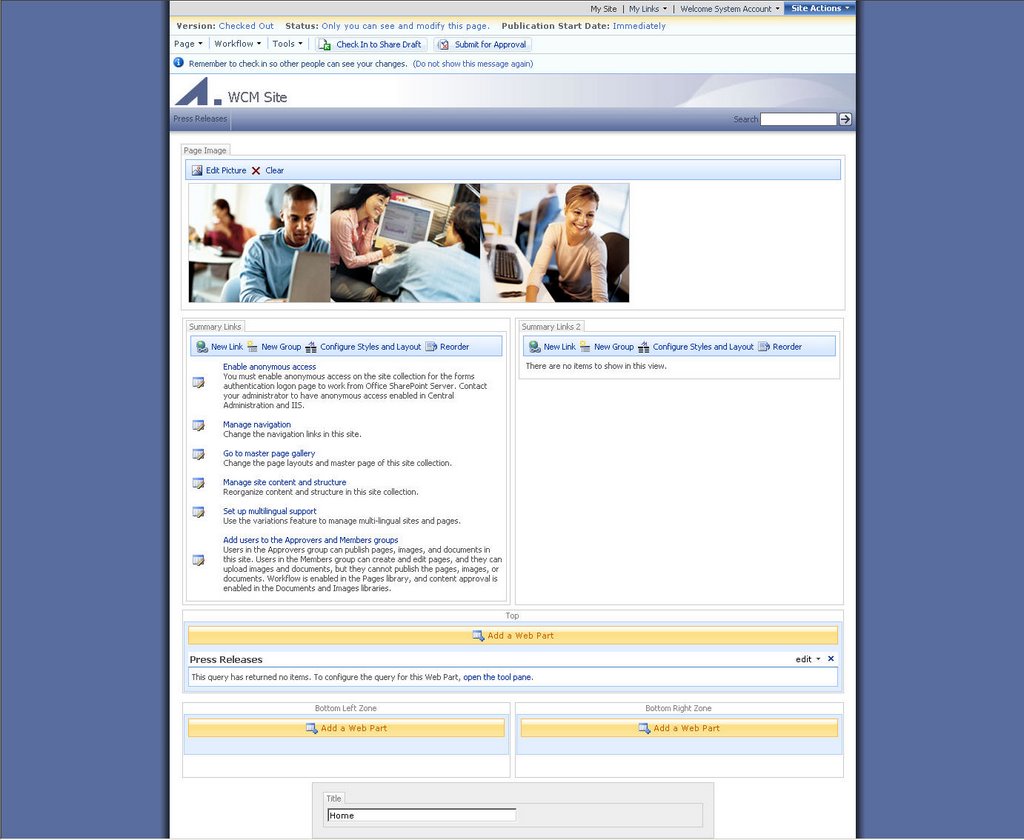
For example when you create a new Publishing Portal - as described in [WCM with MOSS 2007 - Getting started with Web Content Management (Part II)] - you will see that the first page is built with a template that provides a Page Image and two Summary Links web parts, a Content By Query Webpart for the press releases and a field control. The page is derived uses the WelcomeSplash.aspx page layout. You can check this by going to Site Actions > Manage Content and Structure and then selecting Pages in the left treeview. Here you will see that it shows /_catalogs/masterpage/WelcomeSplash.aspx in the Page Layout column.


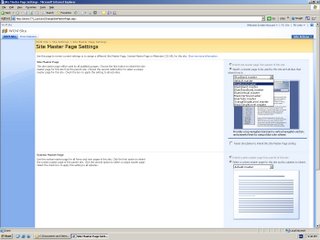
If you want to know which is the Master Page which is currently used you can go to Site Actions>Site Settings>Modify All Site Settings. Underneath the Look & Feel tab you will see the Master Page settings page. The Publishing Portal used the BlueBand.master by default but there are also several other master page templates available such as BlueGlassBand.master, BlueVertical.master, OrangeSingleLevel.master, etc ... On the bottom of this page, you will also see that there is a section in which you can define your own Alternate CSS URL  - when you click the browse button next to it, a window opens in which the different styles in the Style Library are shown. We will look more in depth at style sheets in MOSS 2007 in a next posting.


A page render from a page in MOSS2007 goes through the following steps:

  1. A page is requested by the user
  2. The page layout associated with the page is retrieved
  3. The master page associated with the page is retrieved and renders common elements such as the logo, search box, login, etc ...
  4. The controls in the page layout render content from the page’s fields into the page

Master pages allow you to create a consistent layout for the pages in your application. A single master page defines the look and feel and standard behaviour that you want for all of the pages.This means that master pages typically define how common elements in your page are rendered such as navigation, headers and footers for the site.

Since Windows SharePoint Services 3.0 is built upon ASP.NET 2.0 it uses a lot of concepts which are already present in the framework such Master Pages. Every site contains a Master Page gallery that contains a page named default.master. The default.master contains a number of server controls which typically render the “chrome” of a page such as menus, navigation bars, the login button, the top image, etc ... It is possible to replace these controls with your own own ASP.NET controls. This can be done for pages at the scope of a site or a site collection. It is also possible to create a new master page and add this master page to a specific site through the SharePoint admin UI – Site Settings > Site Master Page Settings. For some more information about master pages and Windows SharePoint Services 3.0 – take a look at Discover Significant Developer Improvements In SharePoint Services  - I will also provide a posting about master pages in SharePoint 2007 pretty soon.


Page layouts are the templates to which users can add content to create new pages. So for each type of page on a site, you create a page layout. This concept is very similar to the concept of MCMS templates in Microsoft Content Management Server 2001/2002 on to which you added placeholder controls to enable user input of content. But instead of using placeholder controls, you will use “field controls” in MOSS 2007 that will bind to the actual content which is stored in the columns in a Pages Library. These field controls are server controls that inherit from Microsoft.SharePoint.Publishing.WebControls.BaseFieldControl and that provide the ability to display and edit data on a page. These field controls are bound to an SPField by their FieldName property.

Whenever a user creates a new page in MOSS 2007, the page content is stored as a separate item in a special type of WSS “V3” list, the Pages Library. A page layout relies on a content type to determine the kind of content that can be stored on pages. Content types are a new concept in the SharePoint 2007 platform, they represent a reusable collection of settings, which define different elements of a piece of content, such as:

  • The metadata – columns in a WSS list - for a specific type of content
  • Workflows that the content will use
  • Conversion types for the content - content types store information about how and where a web page can be created from an item trhough the document converter.
  • Information management policies that apply to the content

All content stored in a list in MOSS is created from a certain content type and you can even associate multiple content types with a single list or library.

When you activate the Publishing Resource feature, a number of system content type templates will be created such as Page content type, Article Page content type and Welcome Page content type. These content types already have a standard number of column templates defined such as start date, expiration date, page layout, etc ... The default content type for Pages library is the Page content type.

Since SharePoint lists are used as data storage, you will be able to take at advantage of both existing and new features such as:

  • Recycle bin Probably a top 5 requested feature in the previous version. The recycle bin allows you to recover deleted items from lists and libraries
  • Alerts Alerts have been extended so that you can now create alerts for multiple user accounts at once. Another interesting innovation is the ability to create an alert based on a view in a document library.
  • Pluggable and extensible authentication Autentication is not limited to use only Active Directory, ASP.Net forms based authentication is supported as well. This mode allows Windows SharePoint Services to work with a variety of identity management systems, including externally defined groups or roles such as Lightweight Directory Access Protocol (LDAP) and light-weight database identity management systems.
  • Per item security Security can now be set on individual items in both lists and libraries instead of simply at the list level
  • RSS enabled lists RSS is an XML-based format for aggregating content. Every list in SharePoint can be published in RSS format
  • Reusable content A central list is provided where you can store content fragements which can be reused in different web pages. It allows plain text, html or images to be automatically updated globally when the item in the Reusable Content list is edited.
  • Caching MOSS 2007 now supports ASP.Net output caching and will support caching pages, page elements, data from SharePoint lists, etc ...
  • Enhanced web-based content editing A DHTML WYSIWIG editor with support for styles, spell checking, better table editing, an image control with asset picker, attachment/link control with asset picker, content reuse, ...
  • Workflow and enhanced versioning – see next section
  • Server side conversion of documents to web pages – see Rich Content Authoring

Once you have a large number of pages in your site, you will be typically confronted with the need to organise all the information in a hierarchical manner. In Microsoft Office SharePoint Server 2007 you will define multiple sites and child sites to organise your information.

tags: , , , ,

MSDN evening session - Developing solutions with Windows SharePoint Services v3 and Office SharePoint Servers 2007

I'm doing a presentation on SharePoint 2007 development in 2 weeks -  for more info check out

http://www.microsoft.com/belux/msdn/nl/events/2006...


October 18, 2006: Developing solutions with Windows SharePoint Services v3 and Office SharePoint Servers 2007

Joris Poelmans, MVP for Windows SharePoint Services

Windows SharePoint Services v3 and Office SharePoint Server 2007 is a huge platform for developing custom web portal, content management, business process management and Business Intelligence (BI) solutions. This session shows the overall architecture of Windows SharePoint Services v3 and how Office SharePoint Servers 2007 are built on top of Windows SharePoint Services. Learn how to develop custom solutions based on SharePoint by leveraging key enhancements like content types, the new feature framework and new possibilities for extending the user interface (UI) and how-to deploy and enable these custom solutions.


When: October 18, 2006, from 18.00 till 20.00

Where: Microsoft Belgium, Culliganlaan 1A, 1831 Diegem

Price: Free-of-charge

Target audience: Developers

tags: , , , , ,

Google Code Search - WTF...

Today I saw Scott Hanselman his posting - Google Code Search - Now you can search the Bathroom Wall of Code  as well as  Peter's - OMG - Google Code Search . 

I concur with Peter's statement "Blood freezing in my veins"  - I have already seen quite some examples from "Coding with Google Search" and I have to say that most of the time I am not that impressed ( quite an understatement ...). I can already imagine a scene like this.

Business Analyst: What do you mean that is complicated? Can't you just look up the code on Google. I have seen that they have this great tool, Google Code Search ...

Developer : [Totally dumbfounded] WTF?!???!

Tuesday, October 03, 2006

WCM with MOSS 2007 - Getting started with Web Content Management (Part II)

In the previous posting - I talked about why web content management is important as well as about the shortcomings in Microsoft Content Management Server. In this post, I will provide some first steps that you can follow to set up your first WCM site in MOSS 2007.

The next steps assume that you already have a Microsoft Office SharePoint Server 2007 up and running. In the next few steps we are going to create a new SharePoint based extranet site:

  • Open SharePoint Central Administration and select the Application Management tab – you will see that underneath SharePoint Web Application Management, you can select Create or Extend Web Application.
  • On the next page select Create a New Web Application
  • On the Create New Web Application page we can specify a number of settings:
    • We will create a new website in IIS on port 77 and we will keep the current path – c:\inetpub\wwwroot\wss\virtualdirectories\77
    • Define security settings – SharePoint 2007 supports both NTLM and Kerberos authentication as well as Basic and a ASP.Net pluggable authentication mechanism.
    • Create an application pool
    • Specify Search Server – this is a new setting – if you create multiple SharePoint web applications you can let them use a common Search Server
  • After you have create a SharePoint web application, you will still need to Create a new Windows SharePoint Services site collection .
  • Select Create Site at this URL – URL path: (root)


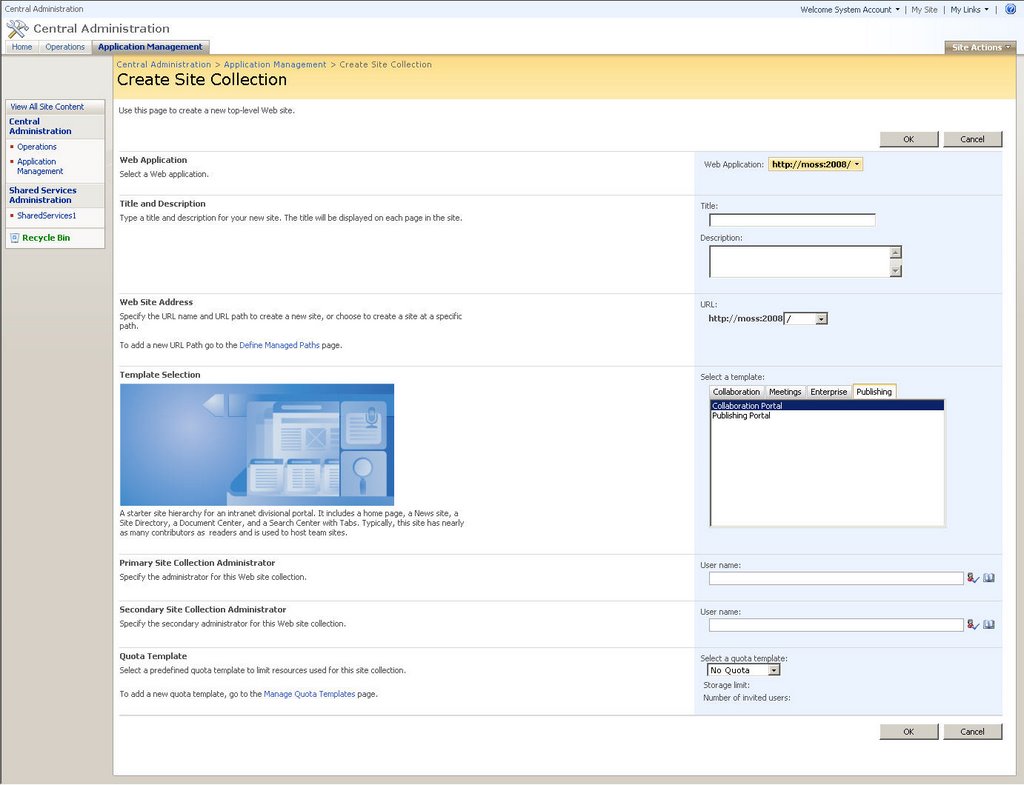
  • Select the template you want to use – when you create a new site collection you can select some extra templates specifically for web content management scenario’s. The 2 site templates – available at root level - which by default support publishing features are:
    • Publishing Portal : this site will contain a homepage, summary links and content by query webpart for rolling up information from a press release web site as well as a search results page and a login page.
    • Collaboration Portal: intranet with typical functionalities such as News, Site Directory and Search Center features
  • Select Publishing Portal
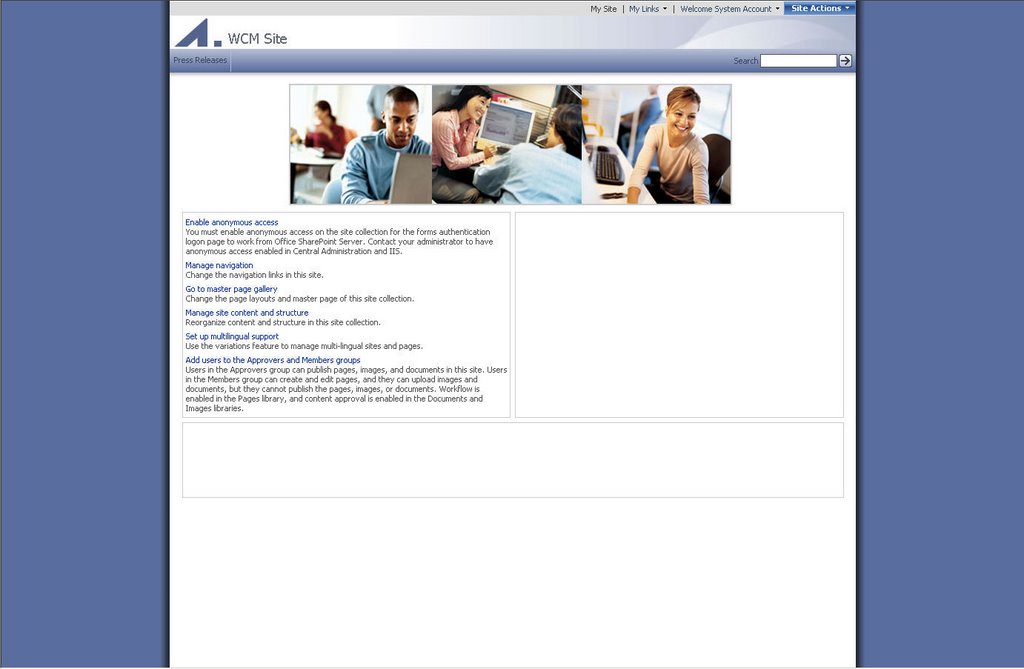
  • Open your browser and navigate to http://localhost:77


  • The site currently works with integrated security and anonymous access is not enabled (For configuring anonymous access check out Enabling anonymous access in SharePoint 2007 – a nice feature in SharePoint 2007 is the ability to Sign in as a Different User as you can see when you click on Welcome System account in the top right corner. This is very helpfull when you want to test your site under multiple security profiles.


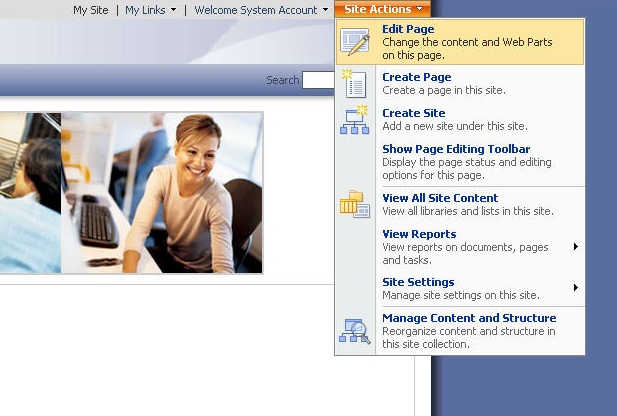
  • Next to this menu you can find the Site Actions menu – select Edit Page to change the contents of the current page or add new web parts. When a page switches to edit mode, the Page Editing Toolbar becomes visible.


  • In design mode you will also notice that the Web Content Management Tasks list on the first page is actually created by the Summary Links web part. This web part allows you to define a list of links – either to web pages or to people. For each link you can specify the grouping and ordering for the links as well as which will be style you use from a list of predefined styles. Remark: this list of predefined styles is defined in the XSL stylesheets found in the top-level Style Library. To make a new style available in the styles drop-down add a new XSL template to ItemStyle.xsl – for a detailed description take a look at How to: Customize styles . If you go to the file system – you will find the most important CSS files underneath c:\program files\common files\microsoft shared\web server extensions\12\templates\1033\Styles\ - controls.css, HtmlEditorCustomStyles.css, HtmlEditorTableFormats.css, portal.css and core.css. Of which Core.css is the equivalent of ows.css in WSS2.0 and portal.css the equivalent of sps.cssClick on the Site Actions menu – Select Create Page.


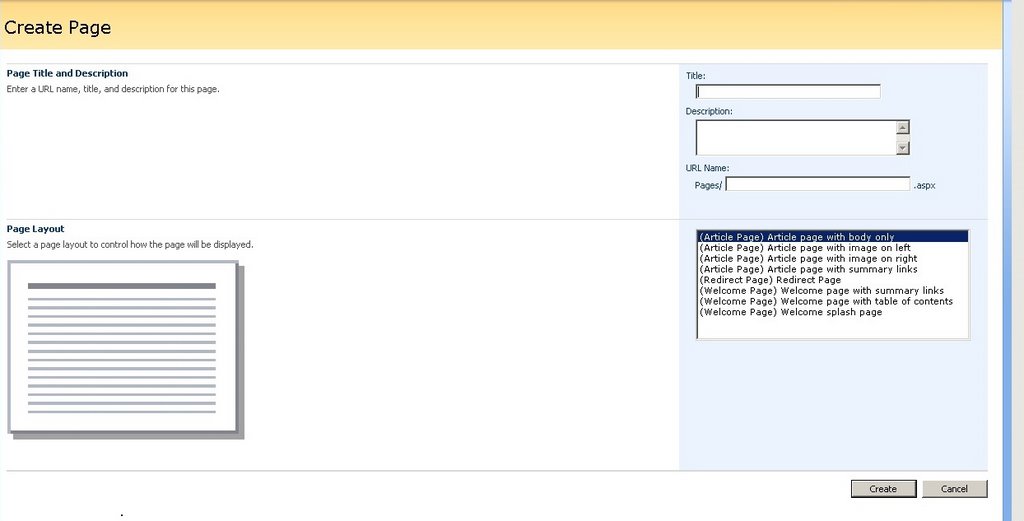
    On the Create Page select the page layout you want to use. Select (Article Page)Article page with image on left. Depending on the page layout, you choose, your page will have a different look and feel and you will be able to add different types of content. Specify the title and a URL and click Create
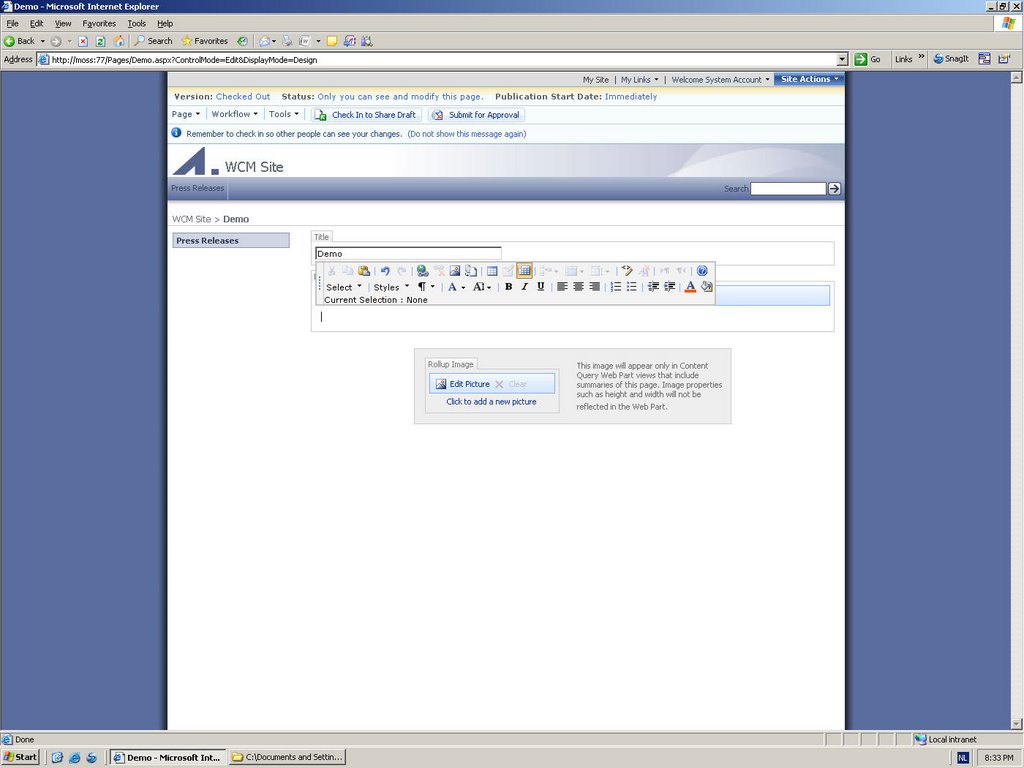
  • When the new page is created, you will notice that the Title is filled in into the Title placeholder control. On the middle of the page, you will notice the the Page Content placeholder – click Edit Content


  • Type some random text and take a look at the available controls to format the text. Select the first line of text and click the Styles link. Change the style to ArticleByLine. You can also insert Reusable Content into the text you are editing as well as images through the
  • To make this page visible to other users as well, it will need to go through the Approval workflow. Click on the Submit for Approval button on the top of the page. On the workflow initiation page you can specify the parameters used in the approval workflow such as the text you want to send in the approval e-mail, a due date and notification e-mails. Since I started with a blank site and only specified the administrator account to have access, this account will also be in the approvers group and the page will be immediately approved.

tags: , , , ,

BIWUG Community briefing

One of the new things we introduced at the last BIWUG meeting was the BIWUG community briefing. In this community briefing we talk about all the new stuff available since the previous meeting. Here are some of the things we talked about:
  • Availability of the Beta2 Technical Refresh - definitely check out the installation guides at http://blogs.msdn.com/sharepoint/archive/2006/09/15/756692.aspx

  • SharePoint Community Kit - The Community Kit for SharePoint (CKS) is a site template that enables practically anyone to create very quickly a functional community website on Windows SharePoint Services V3 or Microsoft Office SharePoint Server 2007. Take a look at http://cks.officeisp.net/default.aspx and http://www.codeplex.com/Wiki/View.aspx?ProjectName=SCK

  • BIWUG and TechnoRati - if you make a blog post about BIWUG tag it with http://www.technorati.com/tags/biwug - an easy way to find more info on blogs. You can also check out other tagged blog items about SharePoint, MOSS, etc ...
  • There also are some interesting projects on CodePlex you should take a look at -
  • Stramit SharePoint 2007 Master Picker
  • CAML Viewer 2007
  • Windows Sharepoint Services Site Directory Web Part Project
  • SharePoint Forums Web Part
  • Office SharePoint Server Search Web Parts
  • RSS FeedReader
  • Database Metadata Generator for the Business Data Catalog
  • Stramit Document Library Browser

  • tags:, , , , ,

    Monday, October 02, 2006

    WCM with MOSS 2007 -Introduction (Part I)

    This is the first in a series of articles about web content management with Microsoft Office SharePoint Server 2007.

    With the introduction the Microsoft Office SharePoint Server 2007 (MOSS 2007) platform launches the next generation of web content management (WCM). Web content management will probably be a familiar term for those of you who have experience with Microsoft Content Management Server. But it is probably better to give a clear definition.

    WCM is the management of both structure and unstructured content that is delivered over the Internet, typically via a web site. Web Content Management includes content creation, site management, workflow, access control, and delivery.

    The main goal of WCM is to put content management and content creation in the hands of content owners and to relief the burden of site maintenance for your IT department. A WCM system allows for content owners to create html pages without any knowledge of HTML. A typical editing environment for these content  creators will be a web based page editor. Other typical requirements for WCM systems are approval flows, publication and expiration schedules for content, content authorization, content deployment, etc.

    Microsoft Content Management Server 2002 (MCMS) already provided all the described functionality but still had some pain point such as:

    • Lack of out of the box search functionality
    • MCMS has a basic workflow system which lets users create pages but does not publish the content until it is approved. The workflow system used lacks however possibilities to extend it.
    • Content authorization is based on Active Directory accounts or local computer accounts
    • ActiveX client install needed for content authors
    • Limited version support
    • Limitations in the PAPI – Publishing API – the object model built around MCMS – e.g. security groups in MCMS are not exposed through the PAPI.
    • The templates for the pages are static, it is not easy to move the placeholders for the required content

    Microsoft clearly positions WCM as one of the key components in its integrated Enterprise Content Management offering with Microsoft Office SharePoint Server 2007. For more information take a look at the Microsoft Enterprise Content Management white paper which gives a broad overview of the ECM key functions:

    • Document management
    • Records management
    • Web Content management
    • Forms management

    tags: , , , ,

    Sunday, October 01, 2006

    [MVP] Congratulations! You have received the Microsoft MVP Award

    My title of MVP Windows SharePoint Services  just got renewed. Thanks to everyone who in one way or another contributed to my nomination. Also congrates to some other SharePoint MVPs - some of them are new ones  - anyway definitely check them out... You can definitely expect some new great stuff about WSS 3.0 and MOSS 2007 from us in the months to come, ... these are exciting times indeed. Here is a list of all MVPs Windows SharePoint Services and one for MVPs SharePoint Portal Server as well - I guess they will rearrange/rename the program when MOSS goes live ;-) ...


    Update:

    Here are some other ones Yeeha! MVP... again! and MVP Award Runde 9


    tags: , , , , ,

    [MOSS 2007] : Upgrade Beta2 to RTM - use the Beta2 Technical Refresh

    A returning question I get is the one about how can we get your existing SharePoint 2007 Beta2 deployments to be upgraded to the RTM ... I think this post from Joel provides some insight:

    Source :

    http://blogs.msdn.com/sharepoint/archive/2006/07/14/665864.aspx

    Customers who wish to upgrade pilot environments to "Release to Manufacturer" (RTM) bits must upgrade to Beta2 Technical Refresh (B2TR).  We will not be supporting direct upgrade from Beta2 to RTM.  The only upgrade path is Beta2->B2TR->RTM.

    Product support for Windows SharePoint Services v3 and Office SharePoint Server 2007 will not begin until after RTM.  This is the path to receive support on your environment at RTM.  Unfortunately product support will not take calls on environments during their upgrade to B2TR. Please do not call product support until after the product RTMs.  In the meantime you can seek peer to peer assistance in the public newsgroups.

    By request from support, we will need to keep the B2TR bits available for download after RTM is available, to ensure customers will be able to upgrade from their Beta2 pilot installs.  When and where the B2TR bits will be available will be announced on this blog at the appropriate time.

    The rest of the upgrade plan is unchanged.

    • B2TR is going to be released as a patch, for full SKUs and for the language packs.

    • Upgrading to RTM will require users to modify a registry key, uninstall B2TR, and then install RTM.  This will be documented in B2TR and RTM.

    Additional Details:

    Ø  How does the user deploy B2TR and use that to upgrade, if they haven’t already deployed beta2?  Install the beta2 bits, then install the B2TR bits, then proceed with upgrade.

    Ø  Do users have to update registry keys to upgrade to B2TR?  No, that’s an RTM thing only.

    Ø  What is the impact on the Search SKU?  It is releasing for the first time at B2TR, as a full install.  No need to apply a patch for that at B2TR.  Upgrade to RTM will be the same as it is for the other products.

    More details on this will be included in the setup guides and readme's of B2TR and RTM.

    Thanks,

    Joel Oleson

    tags: , , , , , ,

    Friday, September 29, 2006

    MOSS 2007 Solve problems with standard workflows after Beta2TR upgrade

    When you upgrade MOSS 2007 to Beta2 Technical Refresh and you notice that your standard workflows do not function - make sure that you have performed step 10 in the upgrade process as documented by Amanda in the SharePoint 2007: Updating MOSS Beta2 to Beta2 Technical Refresh (Beta2 TR)

    Step 10: Update Existing Form Services Templates In order to upgrade any form services or workflow form templates to the technical refresh update, run the following operation from the command line using the stsadm.exe tool. %windir%\Program Files\Common Files\Microsoft Shared\web server extensions\12\bin\stsadm.exe -o reconvertallformtemplates

    tags: , , , , , ,

    Monday, September 25, 2006

    TechEd Europe 2006 - I'll be there as well ...

    I noticed Paul Gielens his post about TechEd Europe and decided to add it to my blog as well - if you are doing .Net development - especially SharePoint or Office development and living in Belgium, let me know so that we can exchange some ideas at TechEd ...


    Friday, September 22, 2006

    Visual Studio Tools for Office 2005 Second Edition Beta

    Whow, that is a mouthfull, isn't it ... It seems that there now is a separate Office Developer Center for the VSTO 2005 SE Beta  - VSTO 2005 SE is specifically targetted at developing with the Office 2007 clients but there are some enhancements for Office 2003 development as well.  The previous version of this beta, was called Cypress - another important thing to know that this is not VSTO "v3" since VSTO "V3" will only be available in the Orcas timeframe. For some more detailed information, take a look at this posting from the Release Program Manager for VSTO

    There are two articles which I strongly recommend, you should take a look at - Get a hands on introduction to VSTO 2005 SE and An Inside Look at VSTO 2005 SE Design

    Some new features in VSTO 2005 SE:

    • Managed code application-level add-ins for some of the most popular Office applications: Outlook, Excel, Word, PowerPoint, InfoPath and Visio.
    • Programming model and runtime support for key Office 2007 features including the ribbon, custom task panes, and Outlook form regions.
    • Design-time support for InfoPath 2007 form templates.
    • Compatibility and maintainability assurances. The VSTO 2005 SE Beta assures that the applications you’ve built on Office 2003 with VSTO 2005 continue to run with the 2007 Office system.
    • Support for more versions of Visual Studio 2005. VSTO 2005 SE Beta now runs in Visual Studio 2005 Professional (stand-alone), in addition to those versions already supported, including all of the MSDN subscriptions and Visual Studio Team System.

    You can download VSTO 2005 SE here - but take a look at the installation notes, there are some things you should watch out for:

    • Make sure you only have one version of Office installed
    • Completely remove previous versions of VSTO v3 CTPs

    tags: , , ,

    Wednesday, September 20, 2006

    Some more Beta2TR stuff

    If you run into trouble with the Office 2007 Beta 2 Technical Refresh take a look at the Office 2007 Beta Known Issues/Readme list . I also saw a strange warning from Eric Lam - Important file format notice for 2007 Office System Beta 2 Technical Refresh 

    Any files save in the new file formats from Beta 2 will not open in Office 2007 Beta 2 Technical Refresh.  You should save these files in the legacy file formats prior to upgrading to B2TR.

    Up untill now, I haven't had any problems with opening Beta2 files with the Beta2TR release - only some warning in Excel 2007 about loosing some formatting (very low impact - I did not even notice what was lost).

    Andrew also posted a workaround for the problem with MOSS 2007 Beta 2 WCM/publishing sites which were broken during the Beta2 Technical Refresh installation.

    tags: , , , , ,

    Saturday, September 16, 2006

    Upcoming meetings BIWUG (Belux Information Worker User Group)

    After a long and deserved summer break, we are ready again to start our monthly sessions. And be ready for some exciting stuff the coming months. As you all are aware, the next 6 months will be very important for anybody who follows up what Microsoft is doing in the IW space with of course the release of the new 2007 Office System. We have two meetings planned so far. Here are the details:

    September Meeting

    Tuesday, 19th of September, 18:00 PM – 21:00 PM

    Location: DigiPoint, Oudenaarde – see the route description on the www.biwug.be site

    Theme of the evening session is Records Management – a very exciting new addition to SharePoint.

    Agenda:

    18:00 – 18:30      Welcome and Introduction

    18:30 – 19:00      Community Briefing

    19:00 – 19:15      Break

    19:15 – 19:45      Overview Records Management with MOSS 2007

    19:45 – 20:45      Demonstration Meridio Products

    20:45 – 21:00      Closing Note

    All attendees will receive that evening a CD-ROM with plenty of material to prepare for the upcoming Office release.

    Register here.


    October Meeting

    Saturday, 14th of October, 09:30 AM – 13:00 AM

    Location: to be determined

    Theme of this session is Upgrade and Migration – a very hot topic indeed

    Agenda:

    09:30 – 10:00      Welcome and Introduction

    10:00 – 10:45      Community Briefing
    10:45 – 11:00      Break

    11:00 – 12:00      Upgrading Windows SharePoint Services v2 and SharePoint Portal Server 2003

    12:00 – 13:00      Migrating CMS 2002 Sites to MOSS 2007

    An important decision we have made during the latest board meeting is that from now on, anyone can attend the sessions. No fee is applied anymore. So, spread the word ...

    tags: , , , , , , , , , ,

    Friday, September 15, 2006

    Installing WSS 3.0 Beta2 TR – the slipstream approach with screenshots

    Installing updates during an initial product installation is something we are already used to from Windows installations - this process is called slipstreamed installation. However for Windows SharePoint Services Beta2 Technical Refresh this is something new. In a slipstreamed WSS 3.0 installation, the WSS setup files are able to find update files in the product's Updates folder, sequence them and then apply those files during product installation. This is similar to the same model which is also available for the Office 2007 clients - as described in Streamlined customization model for the 2007 Office System and Consolidated updated process for the 2007 Office System

    Step 1: Preparing your environment

    Setup a clean Windows 2003 Server with Service Pack 1 applied - in this example I have also installed a SQL Server 2000 with SP4 applied on the same server. You will also need to install the IIS components .

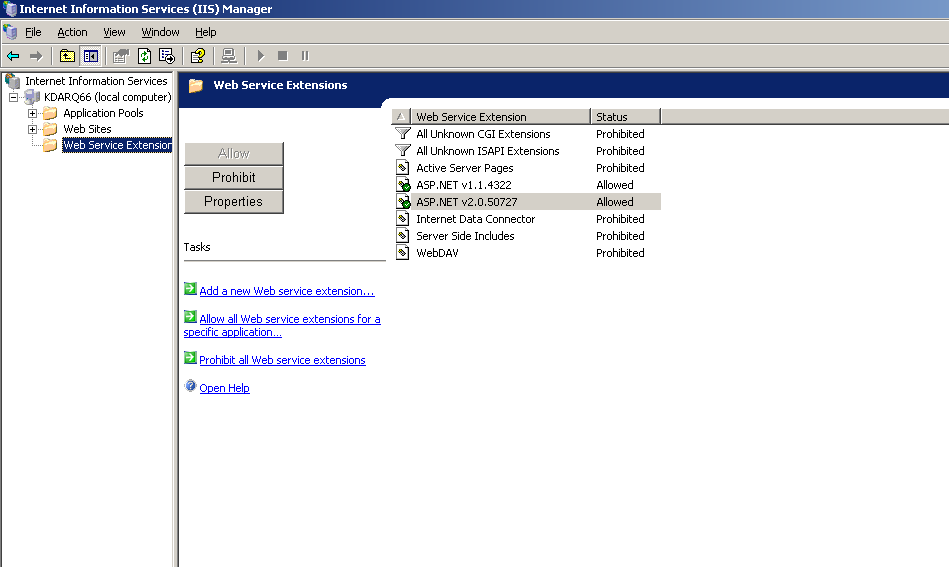
    Install the .Net Framework 2.0 and enable ASP.NET 2.0 Web Server extensions in IIS. If you don't see the ASP.NET 2.0 components in the MMC snap in, enable them with the aspnet_regiis tool – see http://msdn2.microsoft.com/en-us/library/k6h9cz8h.aspx


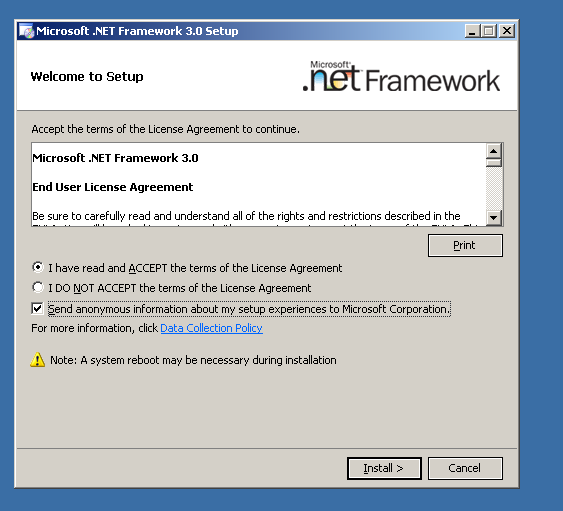
    Step 2: Install .Net Framework 3.0 RC1

    Install the .Net Framework 3.0 RC1 (Formerly know as WinFX) http://www.microsoft.com/downloads/details.aspx?FamilyID=19E21845-F5E3-4387-95FF-66788825C1AF&displaylang=en

    Accept the End User License Agreement and click the Install button.


    A message will appear when the setup has completed successfully.


    Step 3: Unpack the SharePoint Beta2 installation files and the Beta2TR patch files

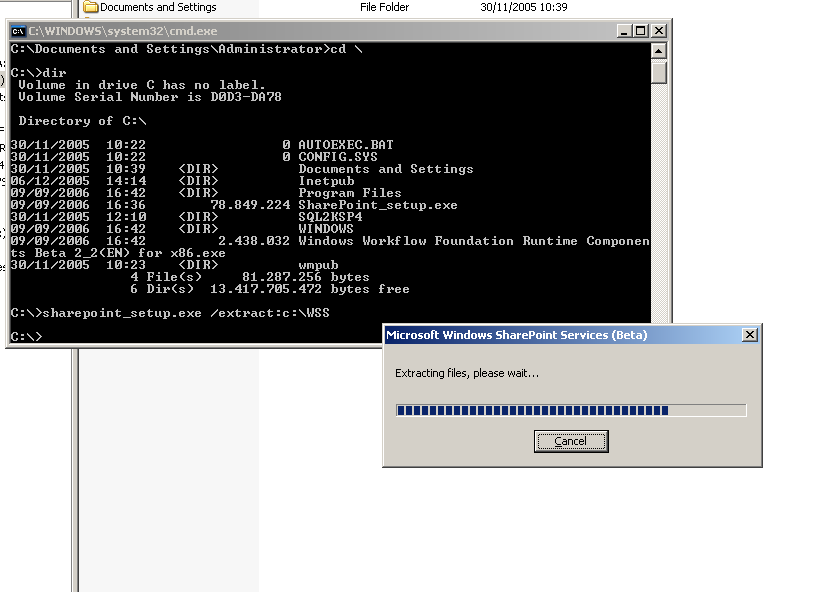
    Windows SharePoint Services Beta2 was distributed as an executable package - sharepoint_setup.exe. You will need to extract these installation bits – go to command prompt and use the following command:

    sharepoint_setup.exe /extract:c:\WSS


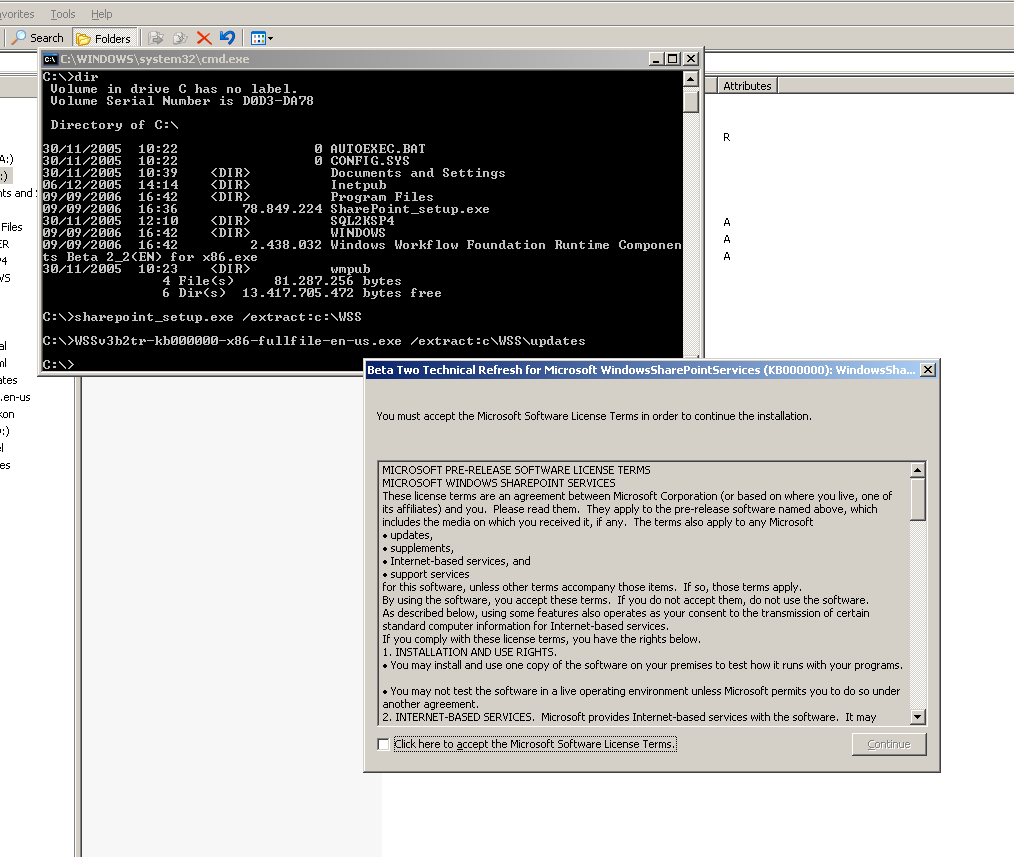
    Navigate to the extracted files and notice that there is an Updates folder - this should only contain a README.TXT file. You will need to extract the Beta2TR patch files to this folder - use the following command:

    WSSv3b2tr-kb000000-x86-fullfile-en-us.exe /extract:c:\WSS\Updates

    This will extract 3 msp files in this folder : sts.msp, wss.msp and wssmui.msp


    Step 4: Install Windows SharePoint Services Beta2TR in slipstream mode

    Install Windows SharePoint Services Beta2TR by clicking setup.exe.

    Accept the User License Agreement and click Continue


    Choose the Advanced Setup for installation on a single server or in a web farm. Choose the Advanced Setup if you are going to use a SQL Server 2000 or SQL Server 2005. If you choose the Basic installation option – SQL Server 2005 Express will be installed and used as database.


    In the next step, you can choose Stand Alone install – which will also install the SQL Express database engine or you can choose web front end. If you specify web front end – you will need to specify the database server you will use later in one of the steps of the SharePoint Configuration Wizard.


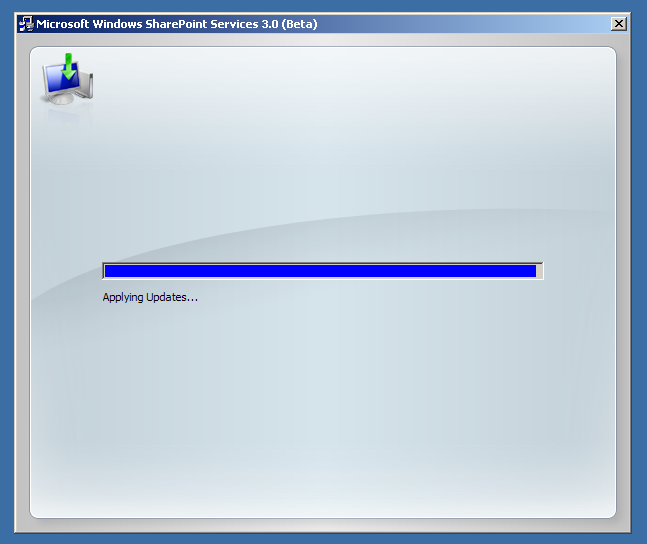
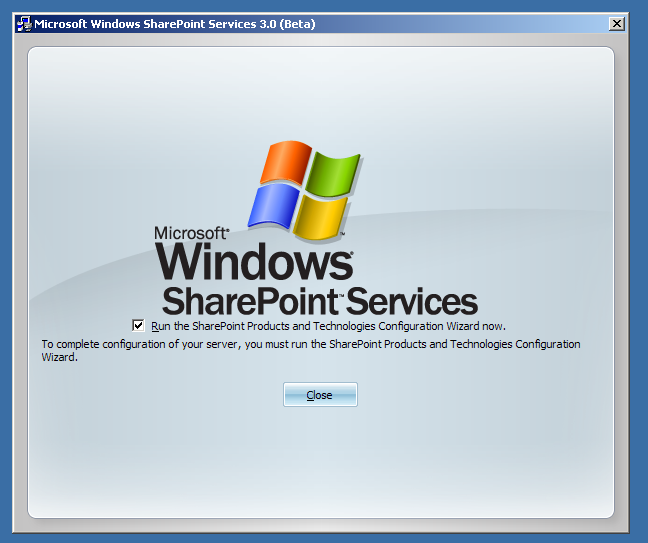
    The installation wizard will first install the Beta2 files and afterwards the Updates as you see in the screenshot below.


    Step 5 : Running the SharePoint Configuration Wizard.

    If you left the checkbox in the previous screen, the SharePoint Configuration Wizard will start up immediately. To run the configuration wizard manually, select Start, then Programs, Administrative Tools and SharePoint Products and Technologies Configuration Wizard.


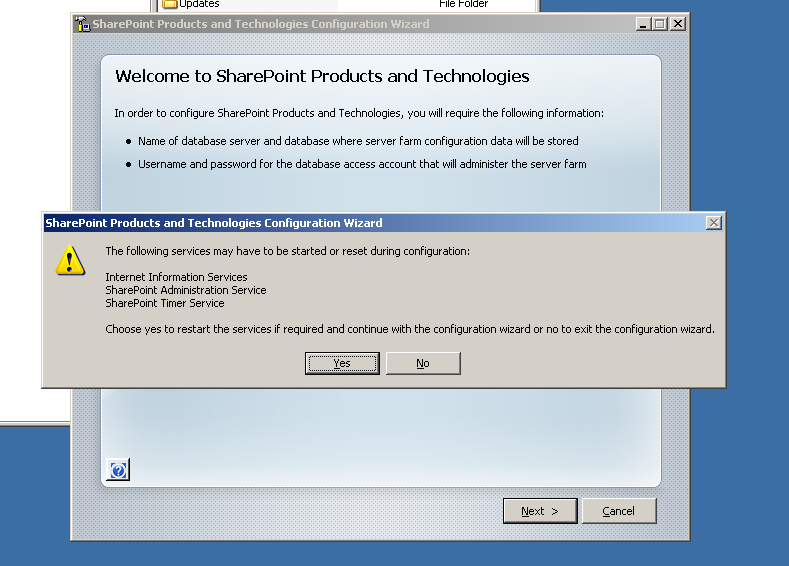
    Click Next to launch the wizard - A window will appear advising of the services that will be reset during the configuration process. Click the Yes button to continue.


    Select your server farm configuration - select "No, I want to create a new server farm" when you are doing a new installation (Even when you will only do a single server installation).


    Specify the Configuration Database Settings - the database server,the database name and the database access account.


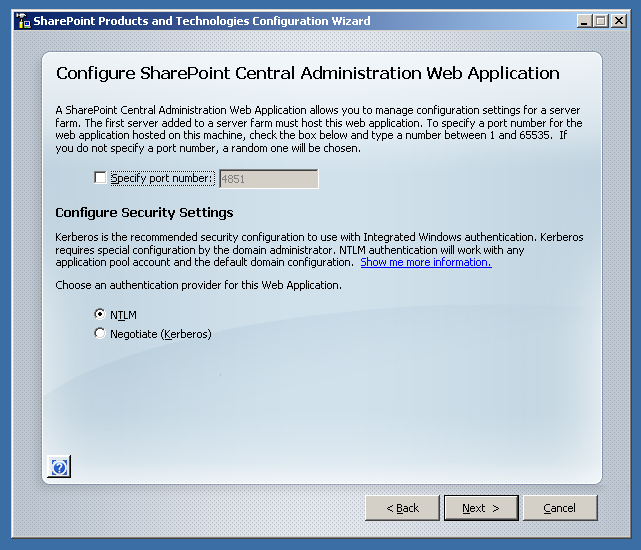
    Choose the location where the SharePoint Central Administration site will be created and configure the authentication provider for the SharePoint Central Administration site. Kerberos is the preferred installation option but requires some extra configuration – see http://support.microsoft.com/?kbid=832769


    After you have completed the previous steps you will see a summary of the configuration settings which will be applied. Click Next to complete the configuration.


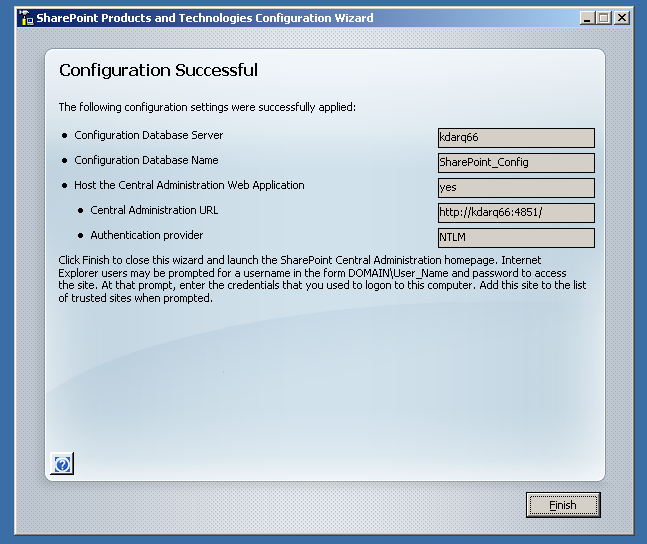
    When the configuration has completed successfully you will see the "Configuration Successful" screen.


    Open the SharePoint Central Administration site , you should see the Administration task list.


    Click on the Application Management tab and click the Create or Extend Web Application. A Web Application is the equivalent of what was called a Virtual Server in Windows SharePoint Server 2.0 and SharePoint Portal Server 2003. When you create a new web application you extend an IIS website to be serviced by Windows SharePoint Services


    Once the Web Application has been created, you can create a new site collection.


    So here you have it, your own nice clean Windows SharePoint Services Beta2 TR site ... happy sharepointing ...

    Thursday, September 14, 2006

    WSS 3.0 and MOSS 2007 Beta2 Technical Refresh (Beta2TR) are finally here

    The Beta2 Tech Refresh is finally available for Microsoft Office SharePoint Server 2007 (32 bit version) (64-bit version here) , Windows SharePoint Services 3.0 (64-bit version here ), Forms Server (64-bit version here), SharePoint Designer and the Office 2007 clients – this is a patch for the current Beta2 versions. As Dustin already pointed out – if you need a full install you will need to create a slipstreamed install – he has added a nice screencast about the slipstream install and take a look at Steve Smith’s Beta2TR installation doc.

    Besides the Beta2 TR patches there are also a number of other plugins and tools released targeted at the Beta2TR release:

    · Microsoft .NET Framework 3.0 - Release Candidate - Build 3.0.04324.17

    · Microsoft® Office Word 2007 Redaction Add-in (Beta) - Version 2.0 - The Microsoft® Office Word 2007 Redaction Add-in makes it easy for you to mark sections of a document for redaction. You can then redact the document so that the sections you specified are blacked out. You can either print the redacted document or use it electronically. In the redacted version of the document, the redacted text is replaced with a black bar and cannot be converted back to text or retrieved.

    · Microsoft® Office Outlook® 2007 Calendar Views Add-in - Version 2.0 - With the Outlook® Calendar Views Add-in, you can easily create and manage filters to display subsets of appointments in Outlook Calendar. Filtered views are based on categories that you apply to appointments.

    · 2007 Microsoft Office Addins : Microsoft Save As PDF or XPS

    If you are working with Publishing sites in Beta2 – also take a look Andrew Connell his posting - Upgrade issue for WCM/Publishing Sites (a ~must~ read before upgrading your beta environment

    This is the text as it appeared on Betaplace:

    We've listened carefully to your feedback and have developed a technical refresh with significant performance improvements and redesigns to address your needs and to enhance your user experience. New features of the Beta 2 Technical Refresh include an updated user interface, better accessibility support, improvements in the robustness of the platform, and greater functionality. For example, you can now deploy code access security policies with your SharePoint sites, as well as experience TimeZones and TimeZone objects that provide object model support in Microsoft Office Outlook. Look out for the Beta 2 Technical Refresh SDKs as well, which add many more articles and code samples to help jumpstart development.

    Before starting an upgrade also take a look at this posting on the SharePoint team blog - Installing Beta 2 Technical Refresh (B2TR) – What you need to know before you double click update.exe. But you can also go directly to the updates guides:

    • SharePoint Server 2007 B2TR Update Guide – This includes all of the update steps, known issues, workarounds and planning guidance.

    o http://technet2.microsoft.com/Office/en-us/library/f49862ab-e067-4723-bb90-7eb1182c65ce1033.mspx?mfr=true 

    There are already a couple of stories and blog posts out there:

    · Review: Microsoft Office 2007 Beta 2 Technical Refresh

    · Office 2007 Beta 2 Technical Refresh Adds UI, Performance Improvements

    · New Office Release Tomorrow,

    · Permanent Link to Yeah! Office Beta 2 TR...

    · Final Public Office 2007 Test Build Due...

    · Office 2007 Beta 2 TR: Start Revving Those...

    · Beta 2 Technical Refresh available tomorrow – some explanations from Jensen Harris about the new UI improvements

    · Office 2007 Beta2TR now available

    · Office 2007 creeps toward release


    tags: , , , , , , ,